Sign Agreement with Singpass
Step 1. Check your Email
Prerequisite
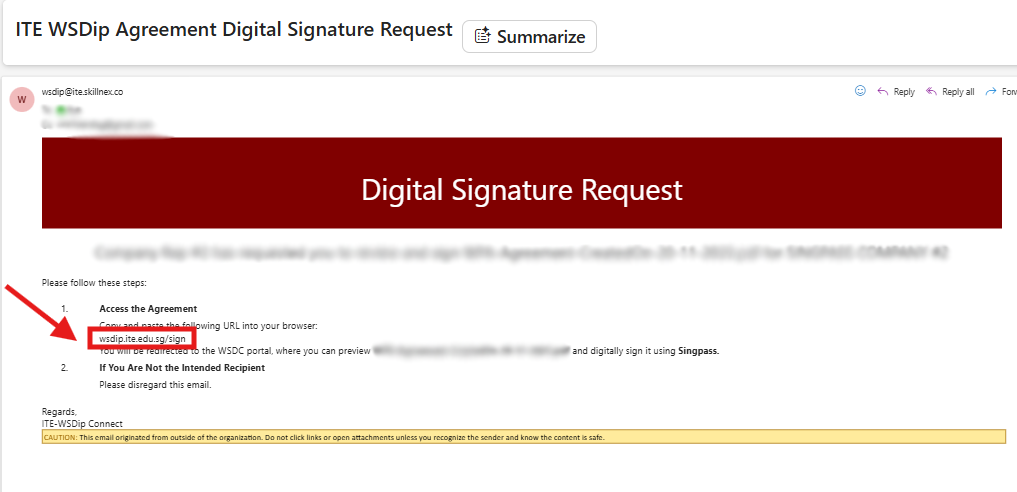
You will receive an email to sign the agreement if you are eligible for SOI.
Step 2. Access WSDC ITE portal
Copy and paste the URL into your web browser's address bar.
It will bring you to WSDC ITE Signing Authentication page.
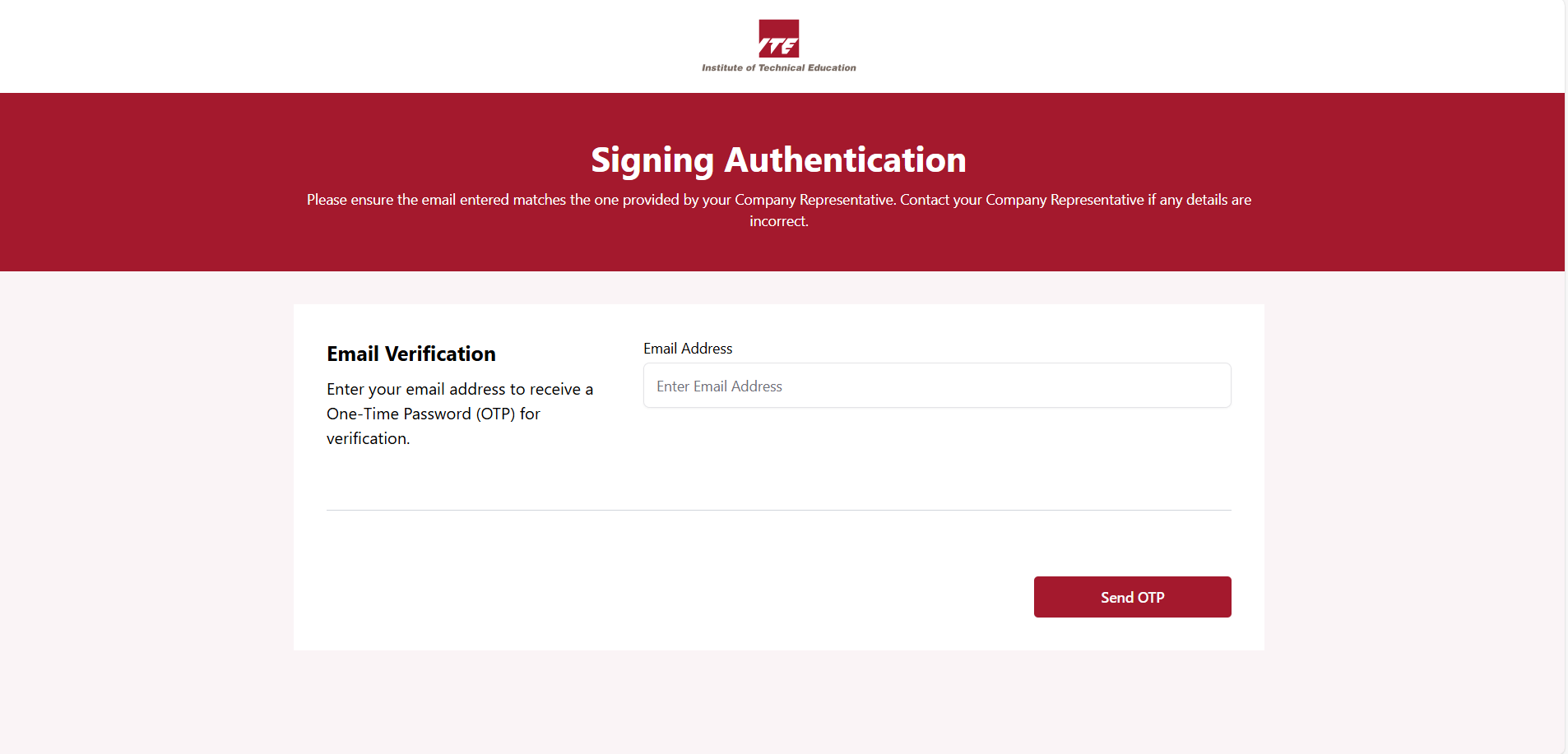
Step 3. Enter your email address
After entering your email address, click Send OTP.
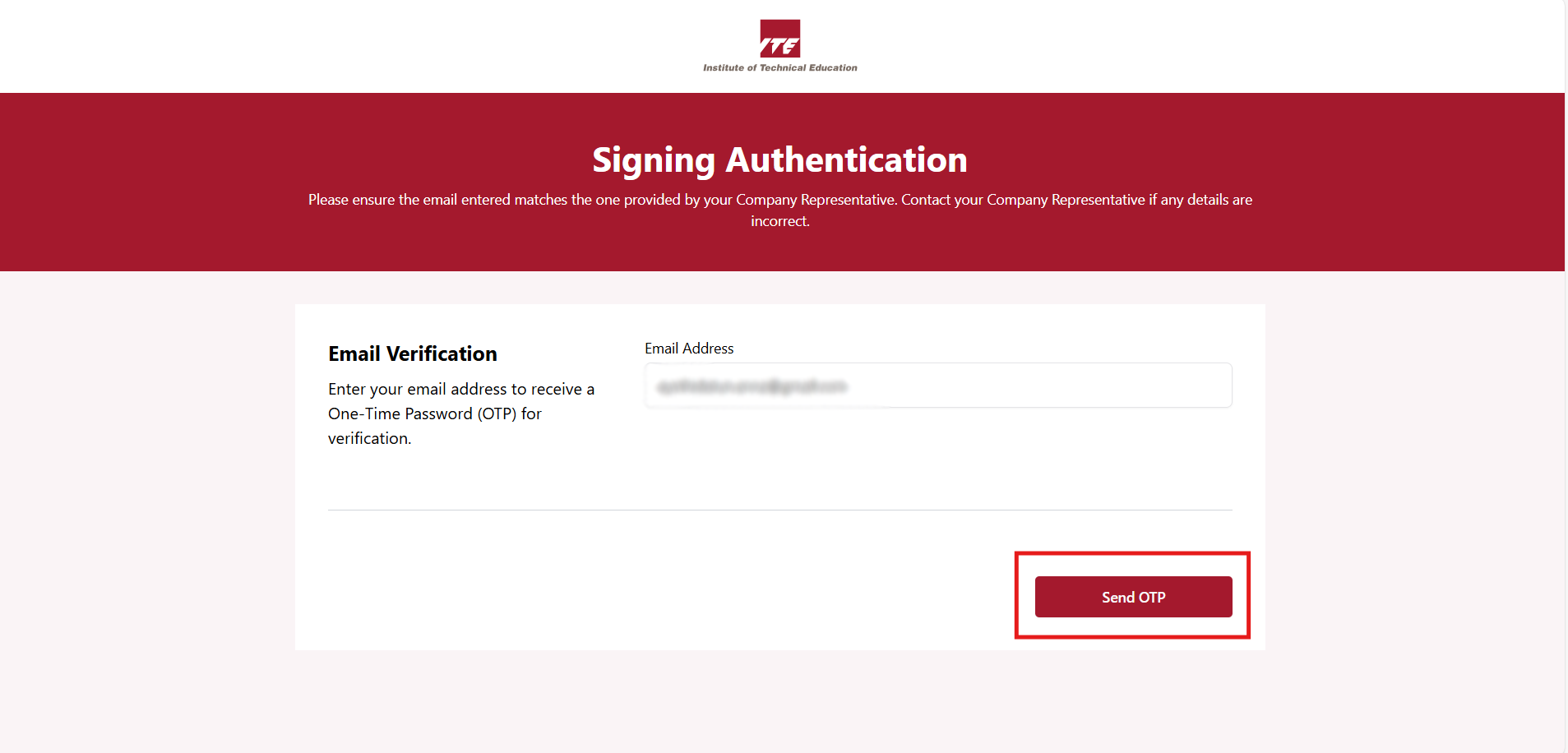
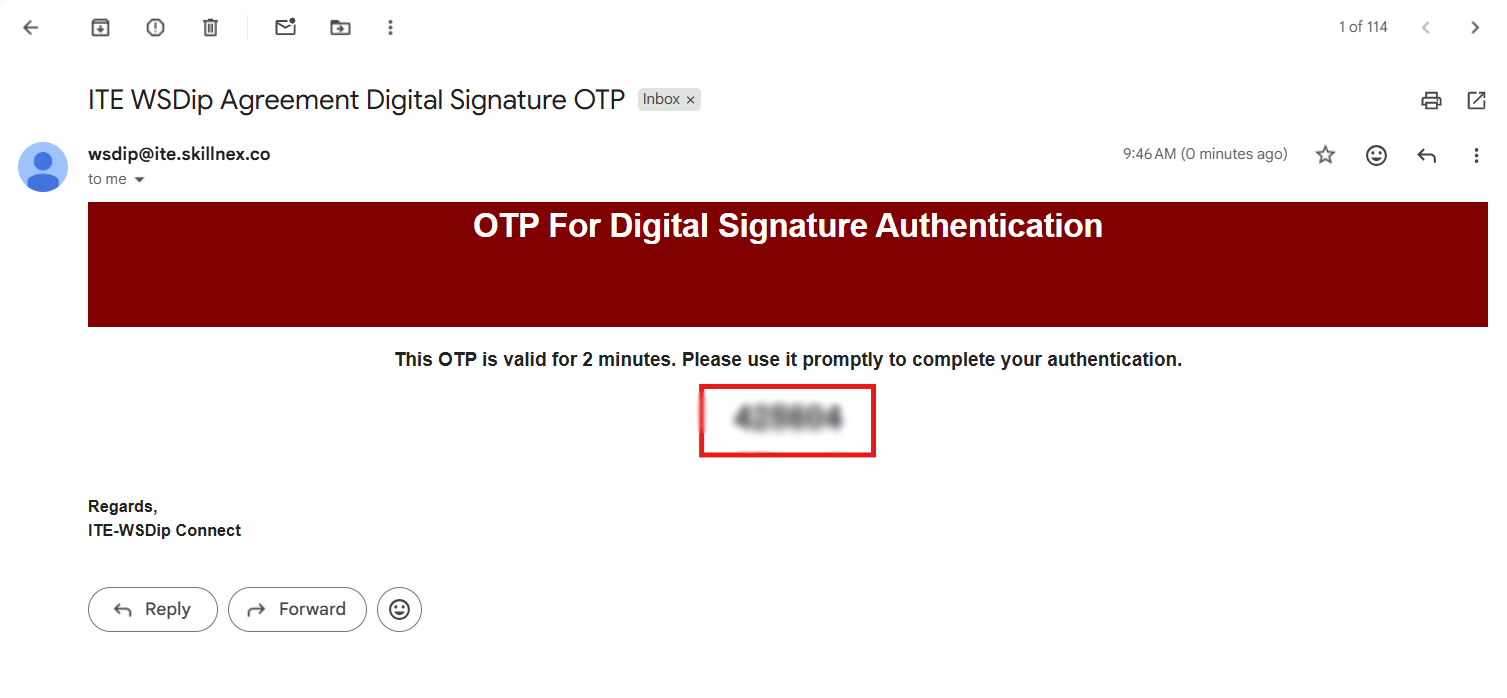
Step 4. Check OTP in your email
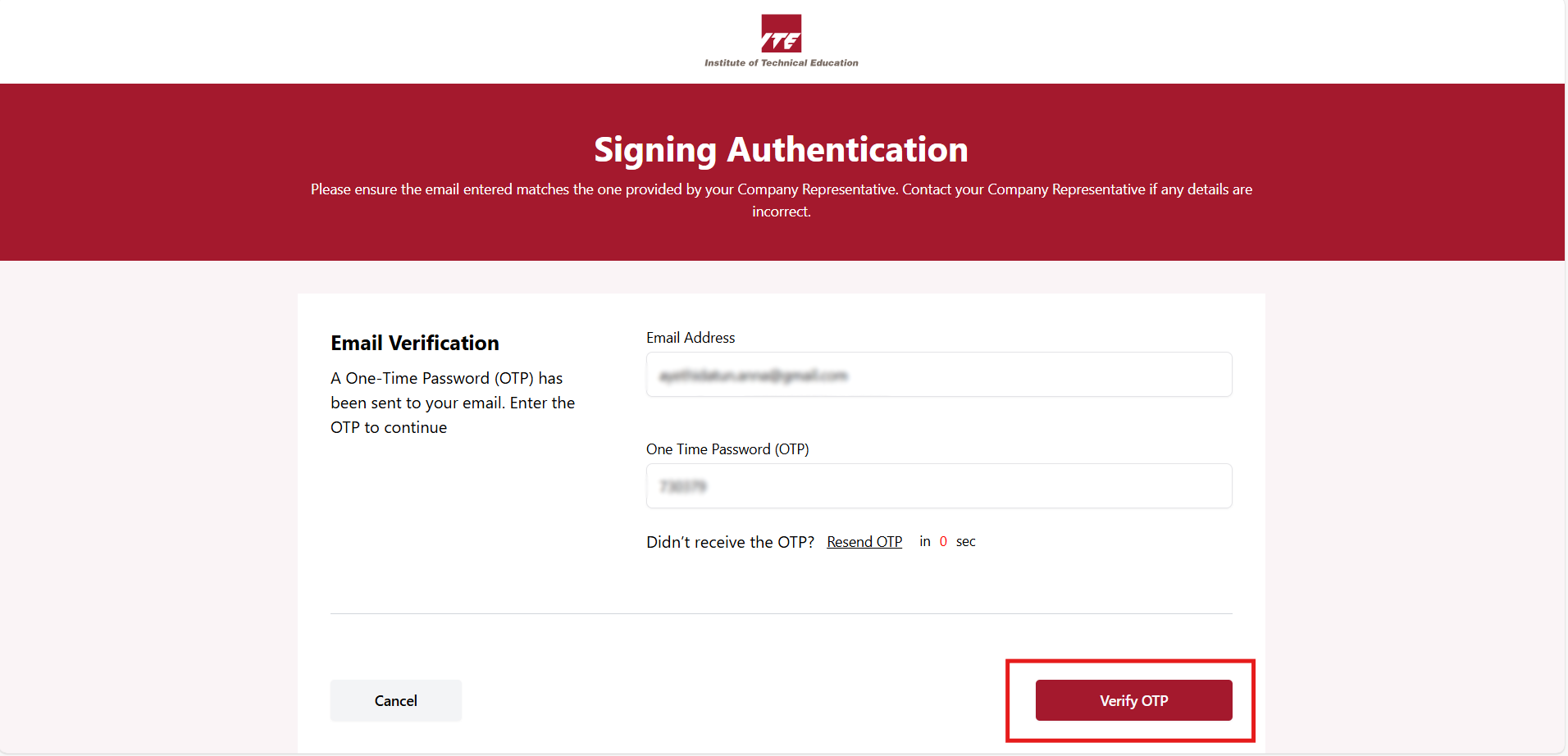
Step 5. Verify OTP
Enter the OTP code and click Verify OTP.
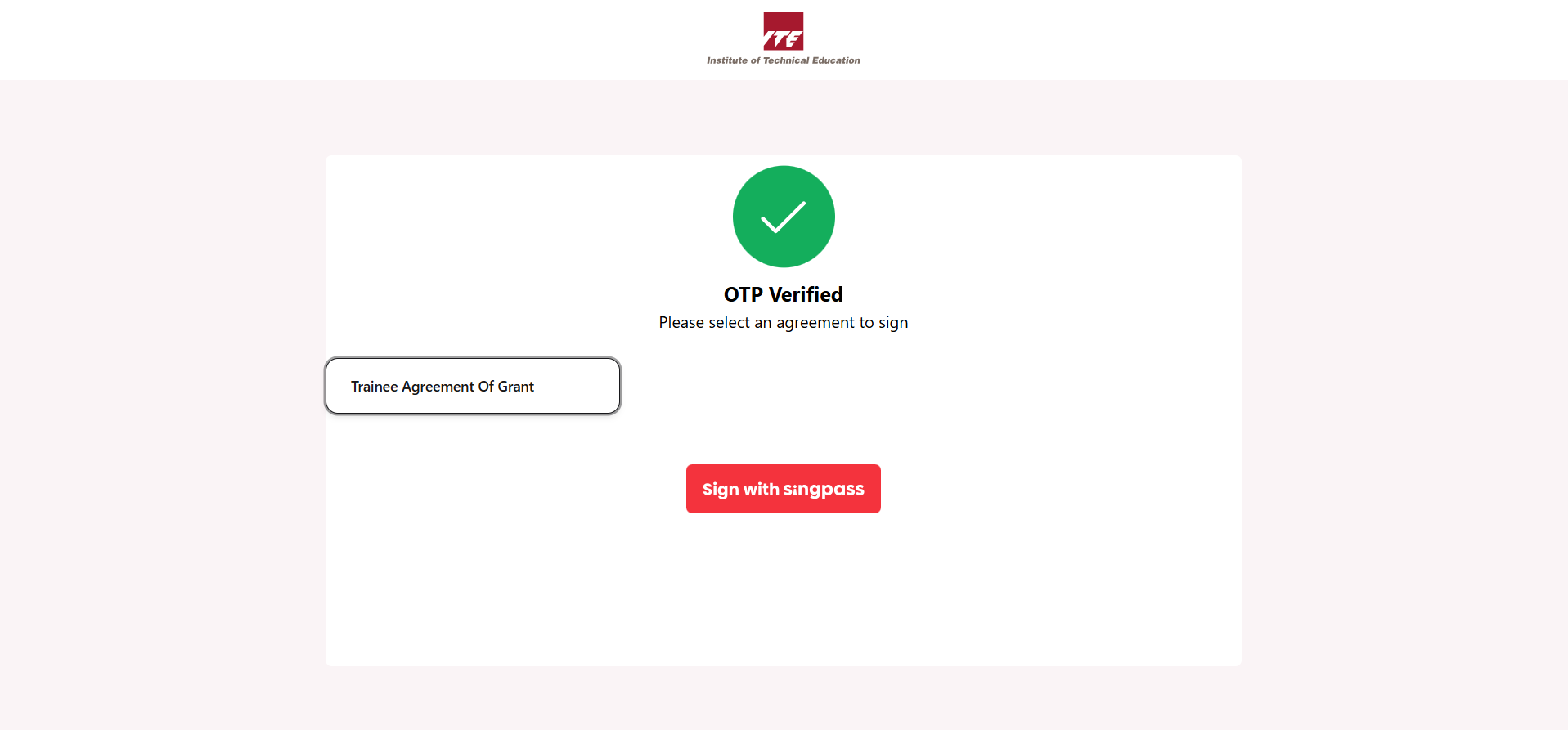
Step 6. Choose Agreement
-
After verifying OTP, choose the agreement you would like to sign.
-
Click Sign with Singpass.
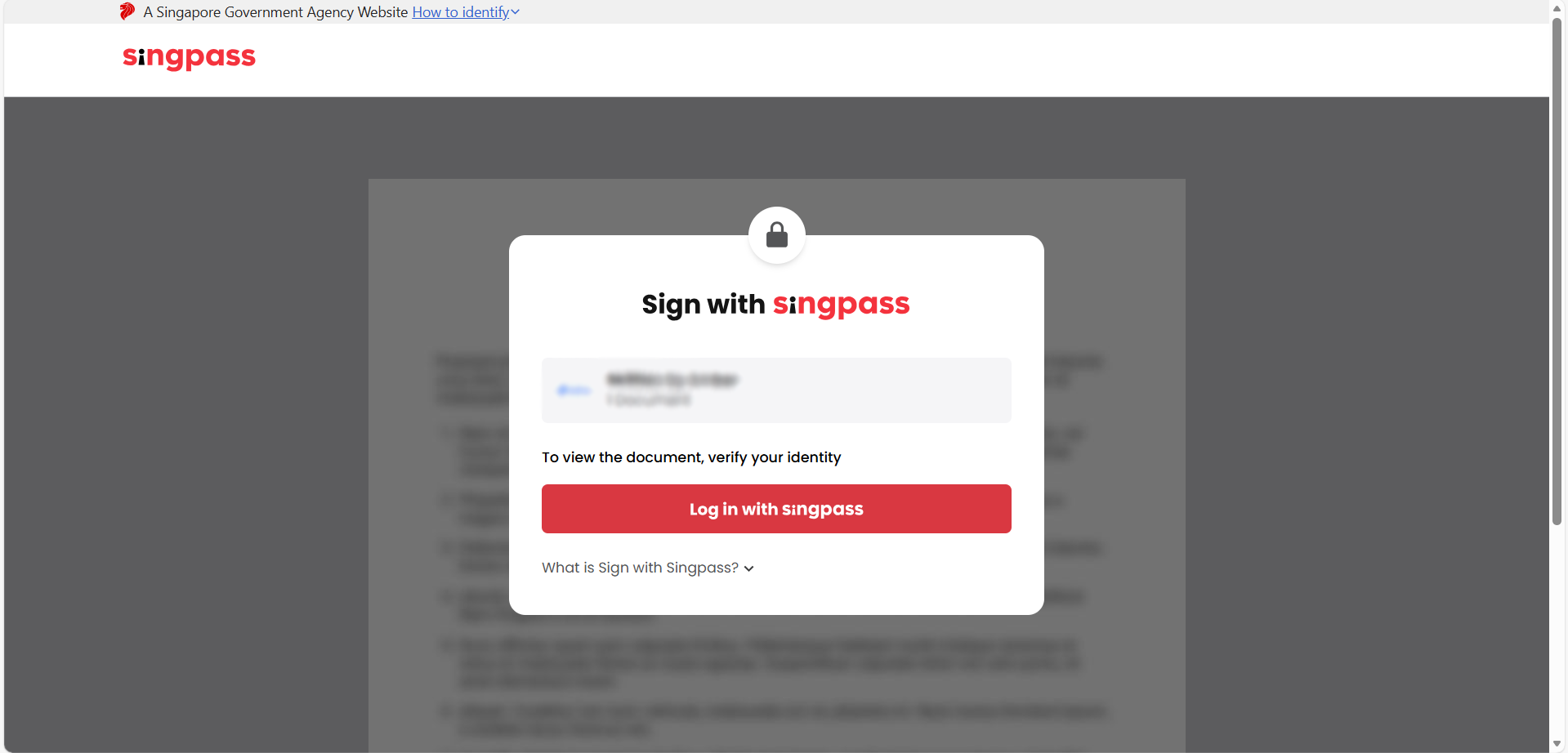
Step 7. Sign Agreement with Singpass
-
You will be redirected to Sign with Singpass page.
-
You need to Log in with your Singpass to view the agreement.
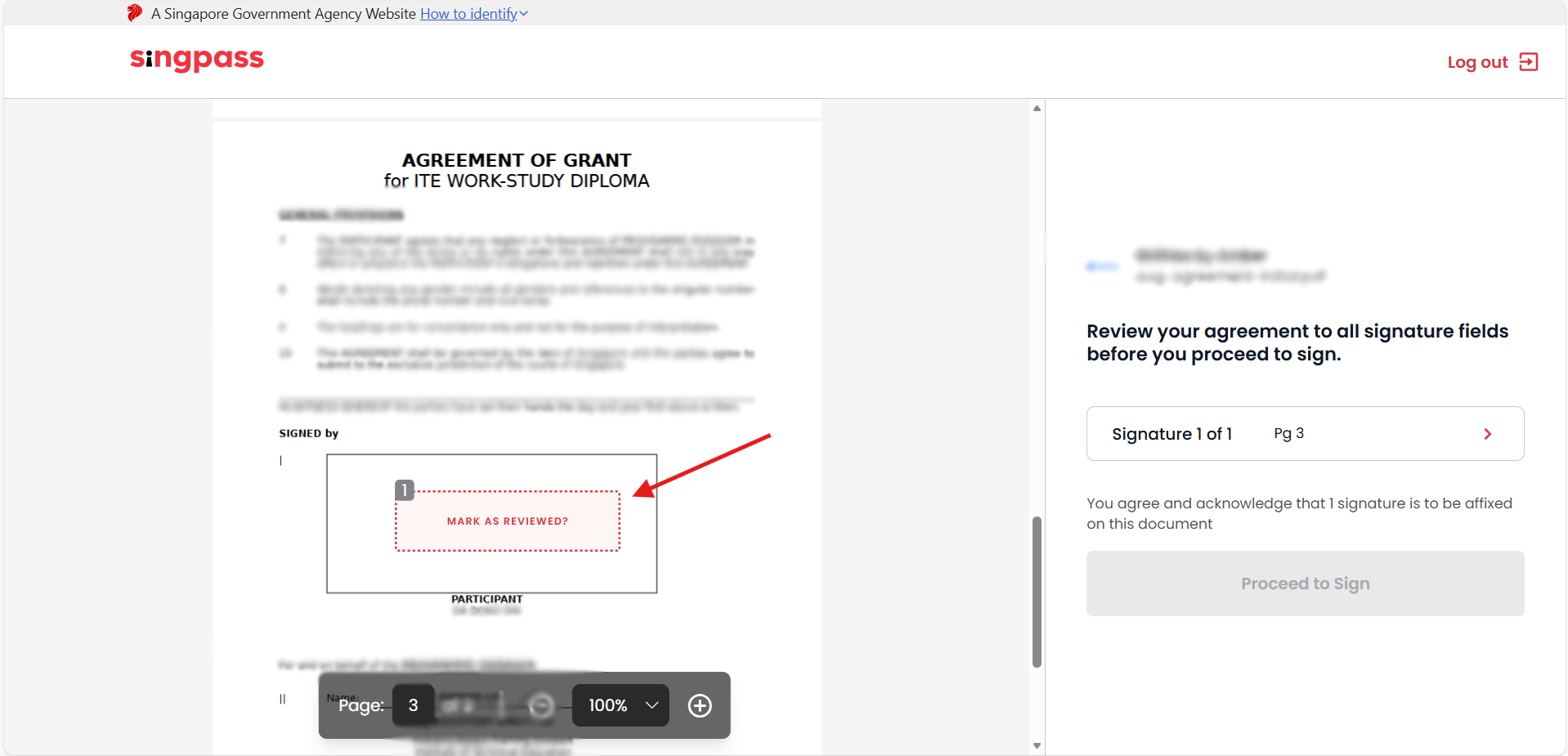
Step 8. Click "Mark as Reviewed?" to sign
-
After logging in with Singpass, you will see a red box in the document that need to be signed.
-
Click Mark as reviewed? to sign the document.
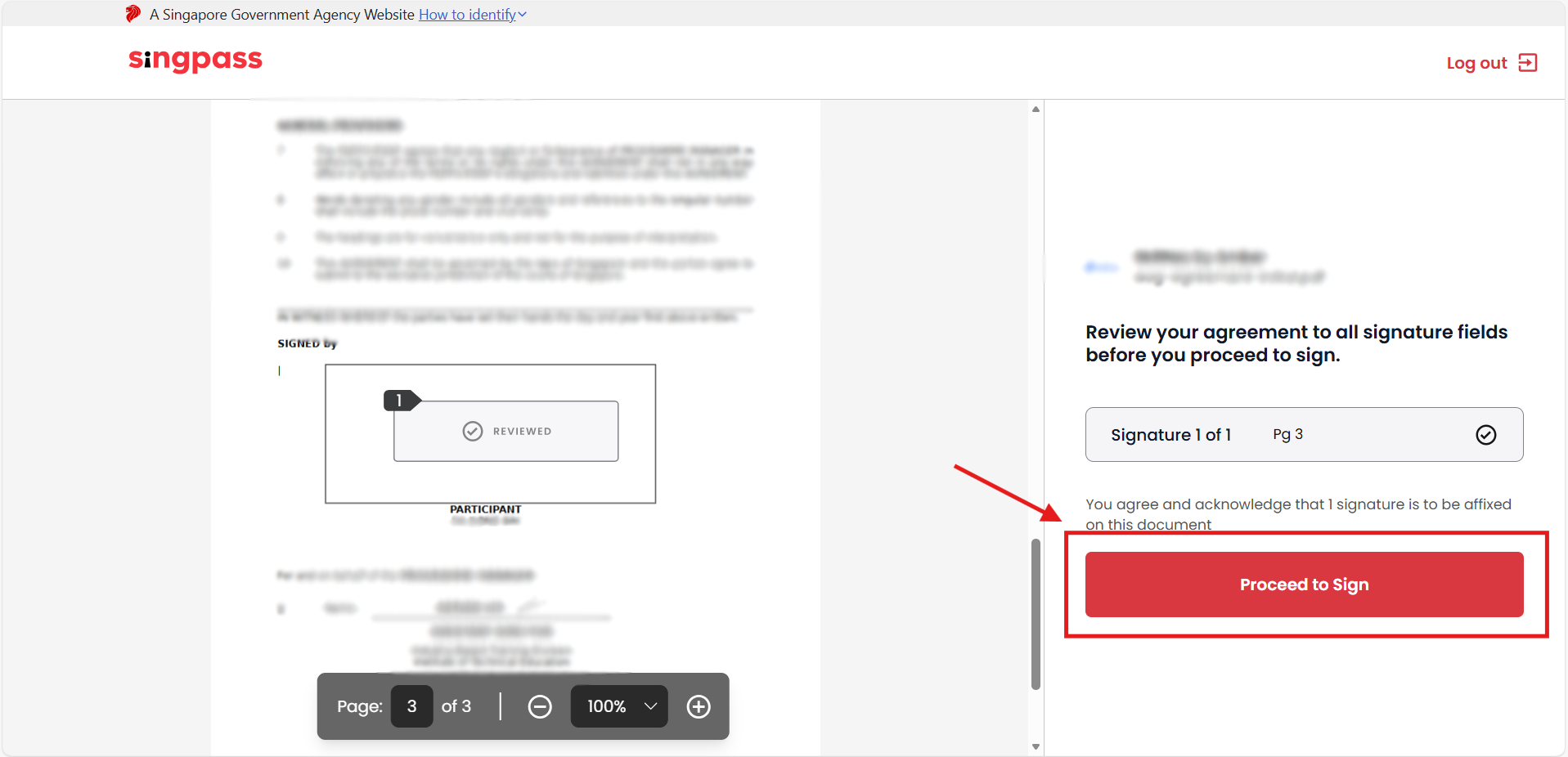
Step 9. Click "Proceed to Sign"
After clicking Mark as reviewed, click Proceed to sign.
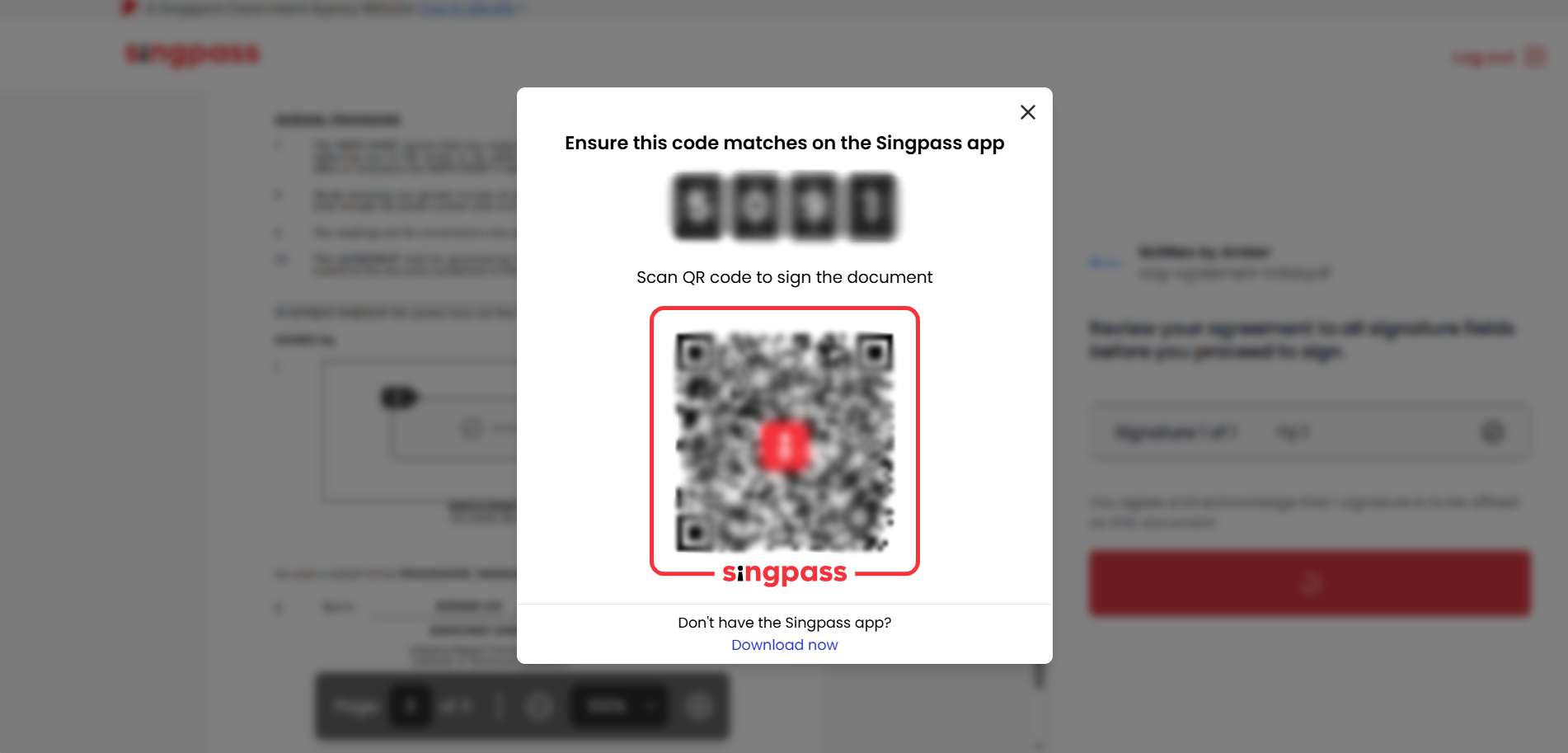
Step 10. Scan QR Code with Singpass App
Scan the shown QR code.
Step 11. Approve on your Singpass App
From your singpass app, click Approve.

Step 12. Successful Sign with Singpass
Document is signed successfully. Click Leave Sign Portal to go back to WSDC ITE website.
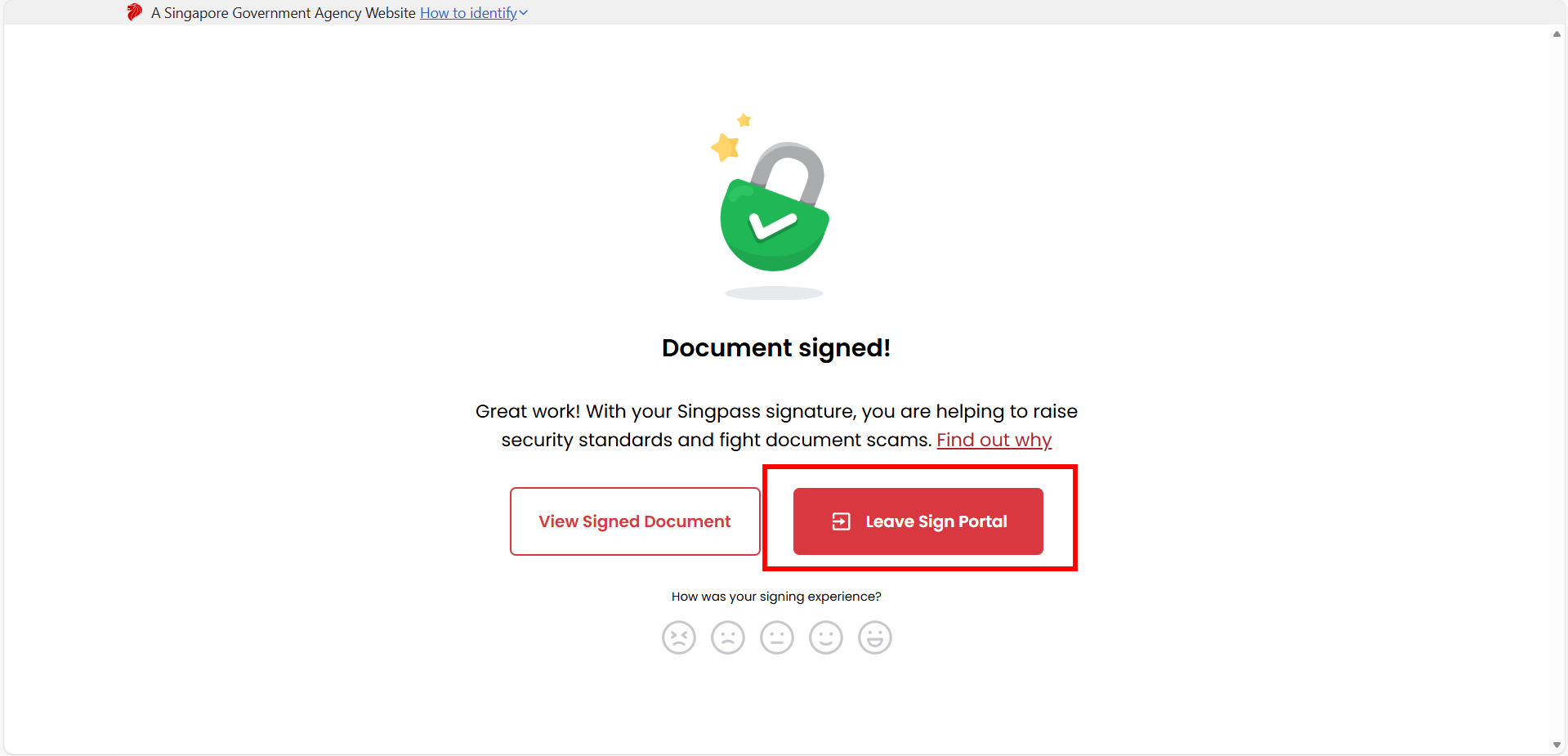
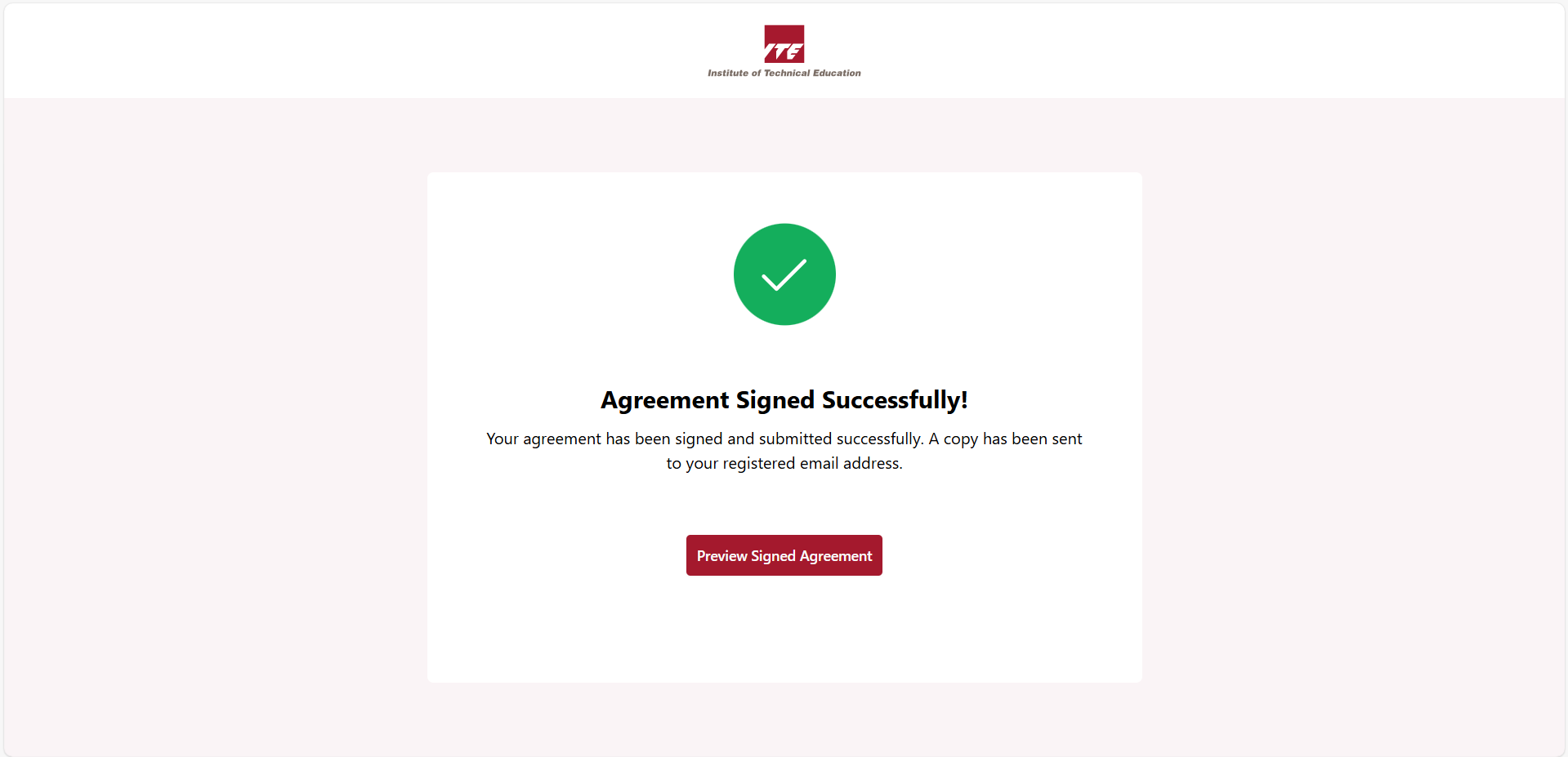
Step 13. Agreement Signed Successfully
Agreement is signed successfully.
You can click Preview Signed Agreement to download your document.