Acknowledge OJT Blueprint
ITE uploads an OJT Blueprint for your company. As a Company Representative, review it and acknowledge it to confirm you have received it.
Step 1: See the Notification
-
You receive an email when ITE uploads a blueprint.
-
On the Overview page, a yellow banner Action Required: Pending OJT Blueprint Acknowledgement shows how many are waiting. Click Go to the OJT Blueprint tab.
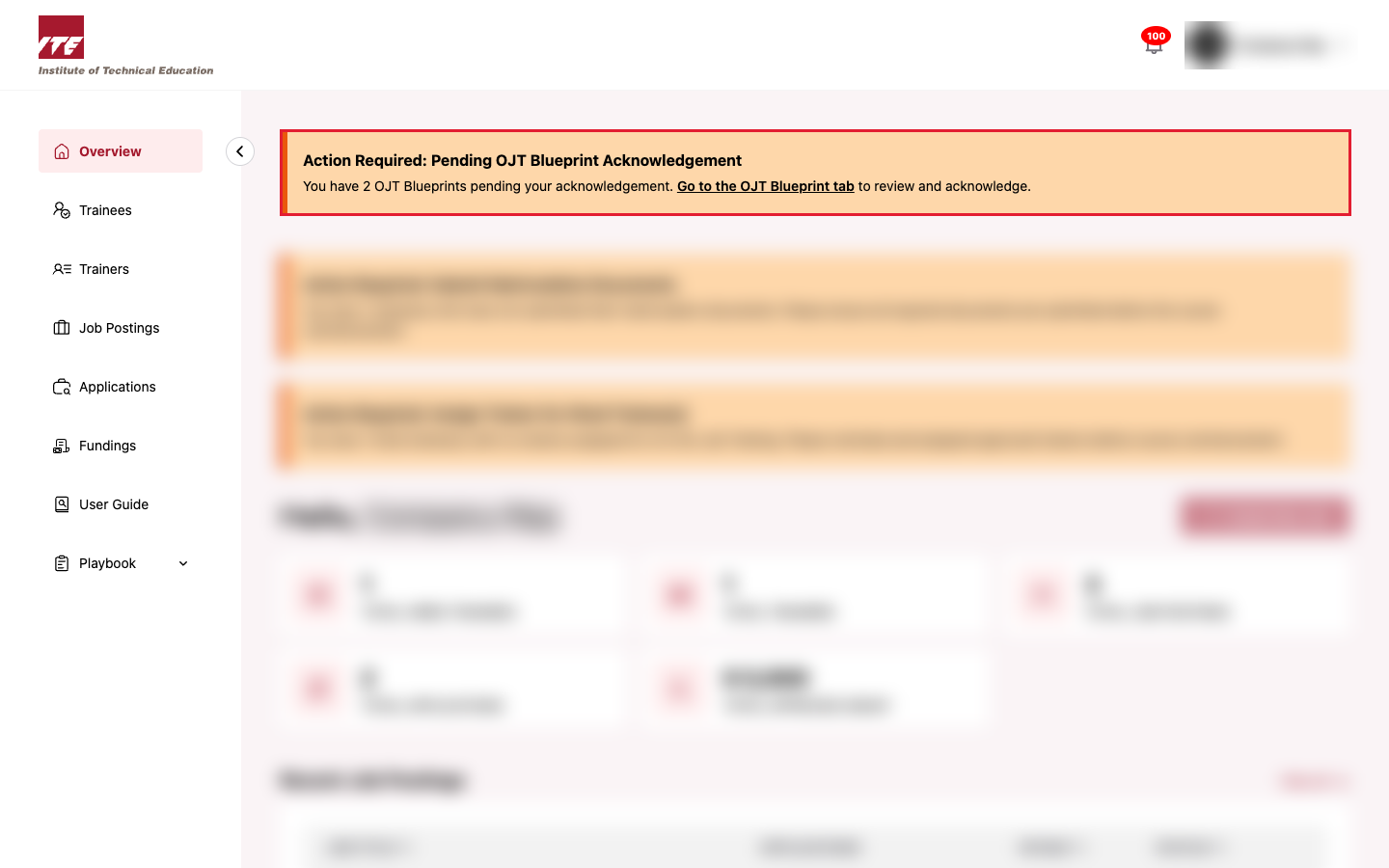
You can also open the tab yourself: click the Dropdown at your Account Profile, click Account Information, then click the OJT Blueprint tab.
Step 2: Review the Blueprint
-
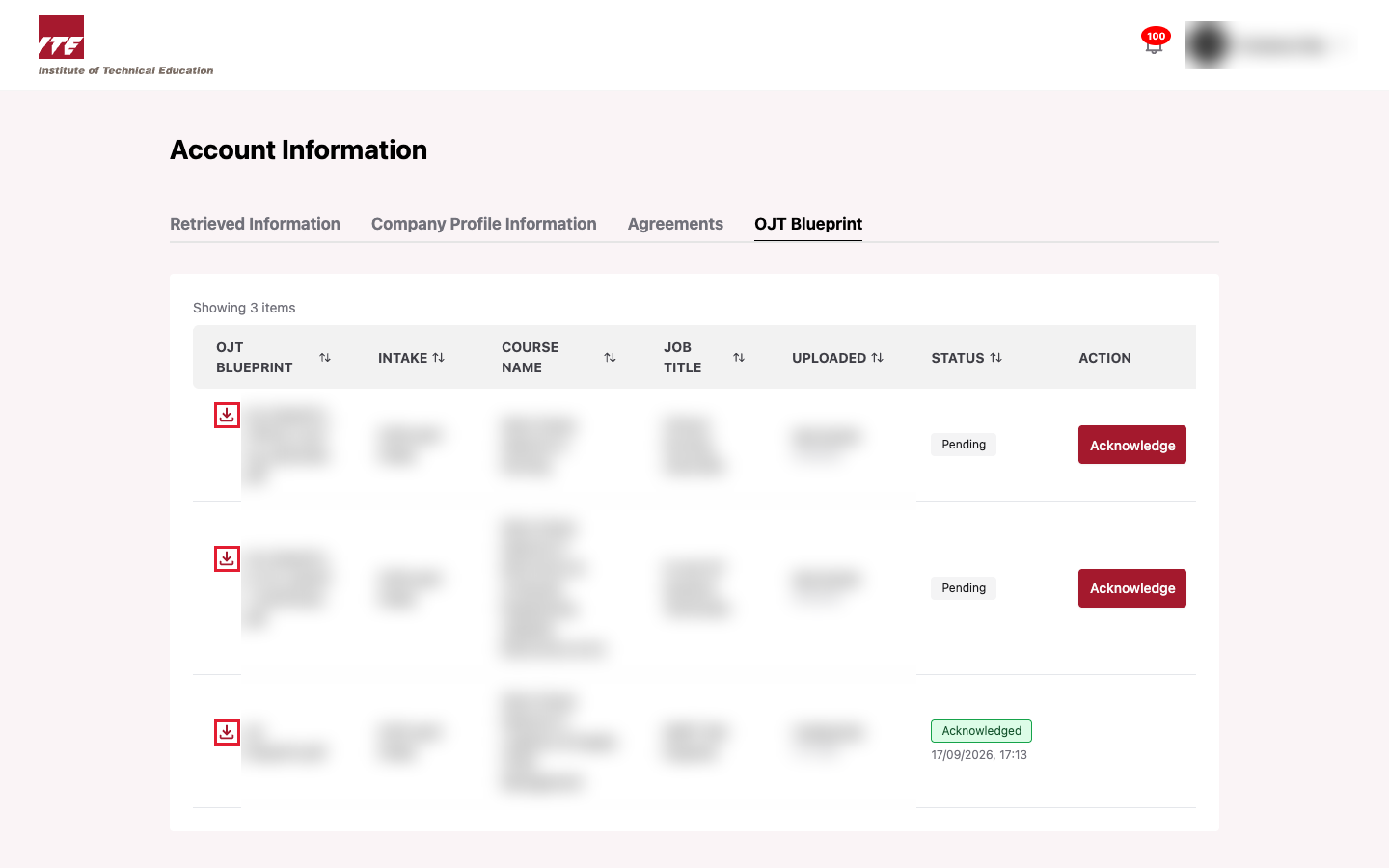
Click the download icon beside the file name to open the blueprint (see Download OJT Blueprint).
-
Check the Intake, Course Name and Job Title match what you expect.
Step 3: Click Acknowledge
-
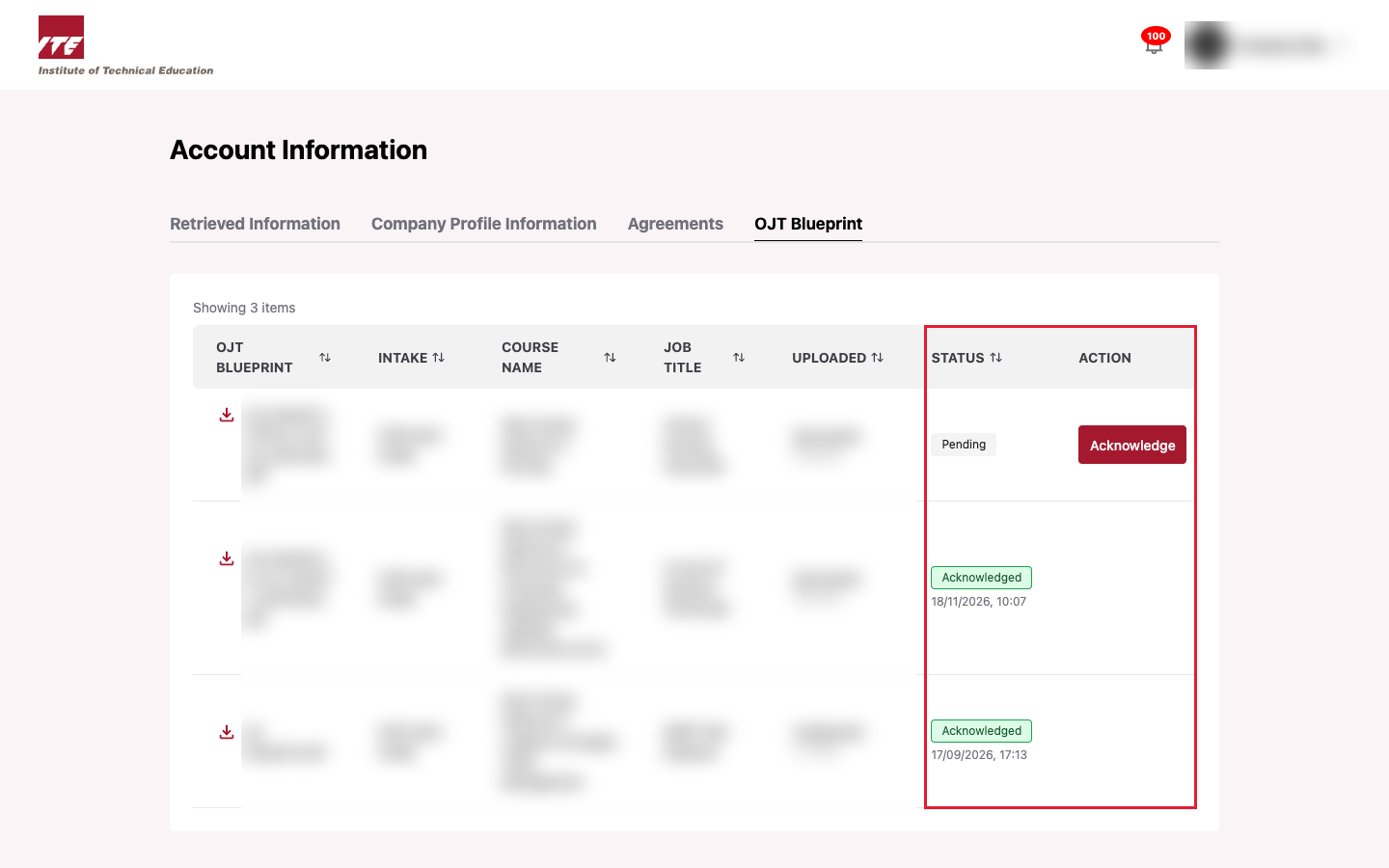
Click Acknowledge in the Action column of the blueprint.
-
The Status changes from Pending to Acknowledged, with the date and time.
Tips
- Each blueprint is acknowledged separately. If several are pending, acknowledge each one.
- Acknowledge is final and takes effect straight away. There is no confirmation window, so review the file first.
- The banner disappears once nothing is pending.