View Deleted OJT Blueprint
When ITE withdraws an OJT Blueprint, it stays in your list marked Deleted so you can still see that it existed.
Step 1: Open the OJT Blueprint Tab
- Click the Dropdown at your Account Profile.
- Click Account Information, then click the OJT Blueprint tab.
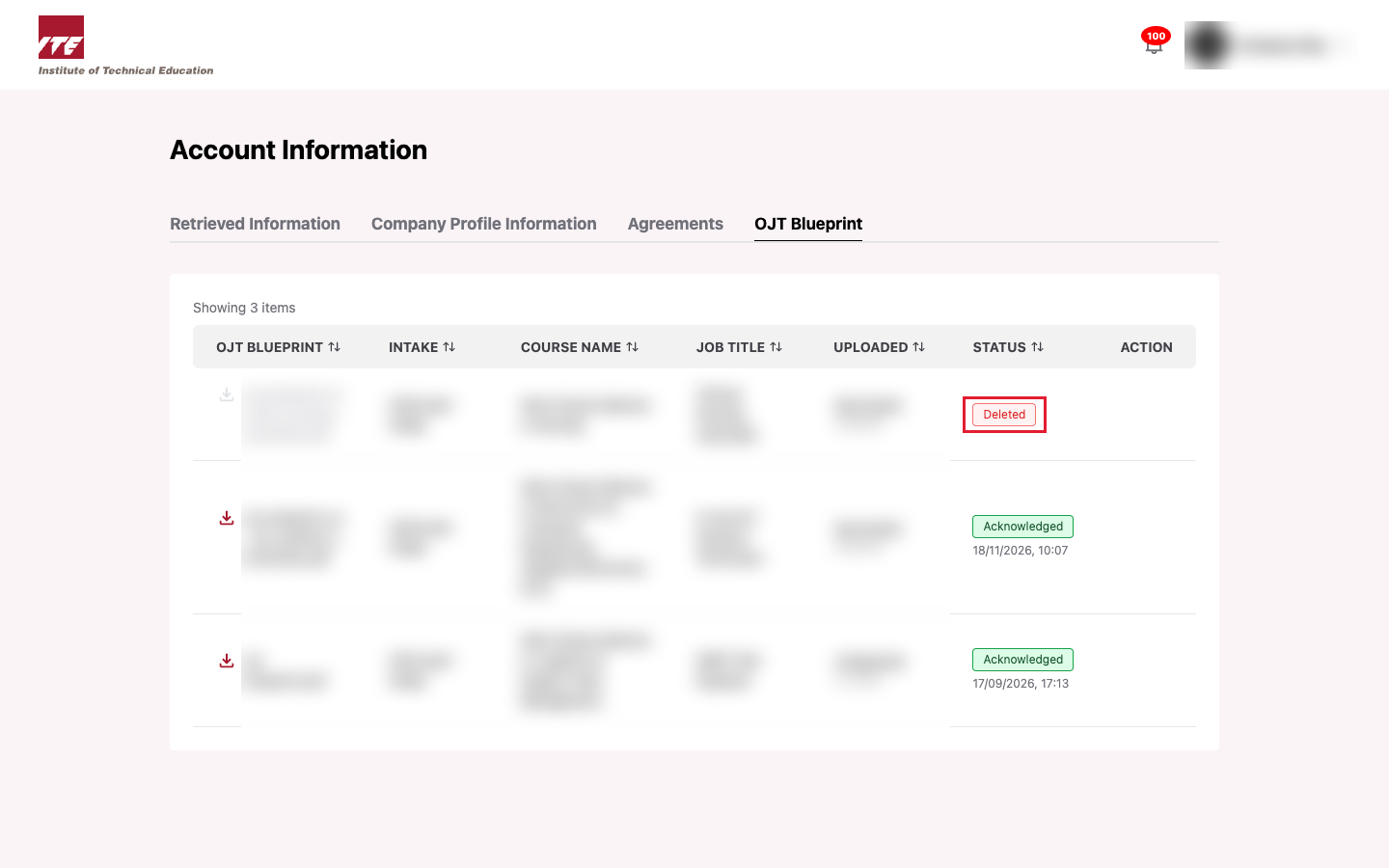
Step 2: Find the Deleted Row
-
A deleted blueprint has a red Deleted status. Its file name is struck through, the download icon is greyed out, and there is no Acknowledge button.
Tips
- You cannot acknowledge or download a deleted blueprint.
- If it was already acknowledged, the original date and time are still shown.
- ITE may upload a replacement for the same job title. It appears as a new row with the status Pending.